How to Use Truecaller? A Complete Guide for Beginners (2026)
Truecaller has changed how I handle calls—gone are the days of picking up unknown numbers with that uneasy knot in my stomach, wondering if it’s a friend or a scam. With over 450 million active users worldwide and billions of spam calls blocked annually, Truecaller is one of the most trusted tools for managing phone calls in 2026.
This guide will walk you through everything from setup to advanced tips in a straightforward, friendly way—like chatting with a helpful friend. Whether you’re dealing with relentless robocalls in India or just want more peace during your day, Truecaller helps you identify callers, block spam, and take back control of your phone. So, here is a detailed guide on how to use truecaller.
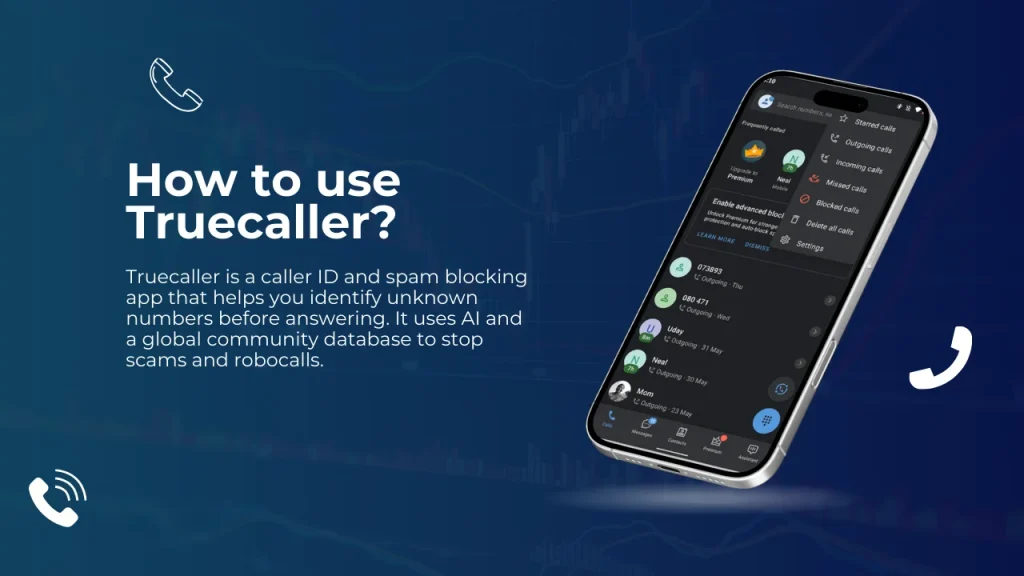
What is Truecaller and how to Use truecaller?
Truecaller started in 2009 as a simple caller ID tool for older phones like Symbian and Windows Mobile. Today, it’s a powerhouse app from True Software Scandinavia AB, with over 450 million users worldwide, especially in India where robocalls are relentless. It identifies unknown numbers in real time using a crowdsourced database updated by the community—think of it as a shared shield against fraud. This guide on how to use Truecaller will show you exactly how to set it up and make the most of its powerful features.
Why bother? That rush of relief when you see a name pop up instead of “Unknown” is priceless. It blocks spam, records calls, and even scans for AI voices in newer versions. But it asks for permissions like contacts and call logs, which can feel invasive at first—like handing over your address book. The trade-off? Peace of mind from knowing who’s calling, saving time and avoiding scams. The official app is free with premium upgrades; it’s available on Android and iOS, with a web version for desktops. This guide will surely be helpful in answering the question, “How to use truecaller”.
How Truecaller Works?
Truecaller is a powerful app that identifies callers and blocks spam using a combination of artificial intelligence (AI) and a massive crowdsourced database. Here’s a simple breakdown of how to use Truecaller and how it works to protect your calls.
- When someone calls you, Truecaller checks the incoming number against its database of millions of reported numbers.
- The database is built and updated by users worldwide who report spam or tag numbers with names and locations.
- AI analyzes patterns to detect robocalls, scam tactics, and even emerging AI-generated voices in 2026 updates.
- If a match is found, the app displays the caller’s name, location, and spam risk instantly—before you even answer.
- For blocking, it automatically filters known spammers or lets you customize rules.
This real-time system makes calls feel managed and safe, not chaotic. It’s like having a virtual assistant that screens every call for you.
Check out all the details of truecaller: truecaller mod APK
How Truecaller Works?
Truecaller is a powerful app that identifies callers and blocks spam using a combination of artificial intelligence (AI) and a massive crowdsourced database. Here’s a simple breakdown:
- When someone calls you, Truecaller checks the incoming number against its database of millions of reported numbers.
- The database is built and updated by users worldwide who report spam or tag numbers with names and locations.
- AI analyzes patterns to detect robocalls, scam tactics, and even emerging AI-generated voices in 2026 updates.
- If a match is found, the app displays the caller’s name, location, and spam risk instantly—before you even answer.
- For blocking, it automatically filters known spammers or lets you customize rules.
This real-time system makes calls feel managed and safe, not chaotic. It’s like having a virtual assistant that screens every call for you. Knowing how to use truecaller is important because it helps people to get to know truecaller better.
Wanna know if truecaller is safe or not, read: is truecaller mod apk safe
Installing and Setting Up Truecaller
Getting started feels like opening a new door to safer calls—that satisfying click when everything connects.
Download and Install on Android
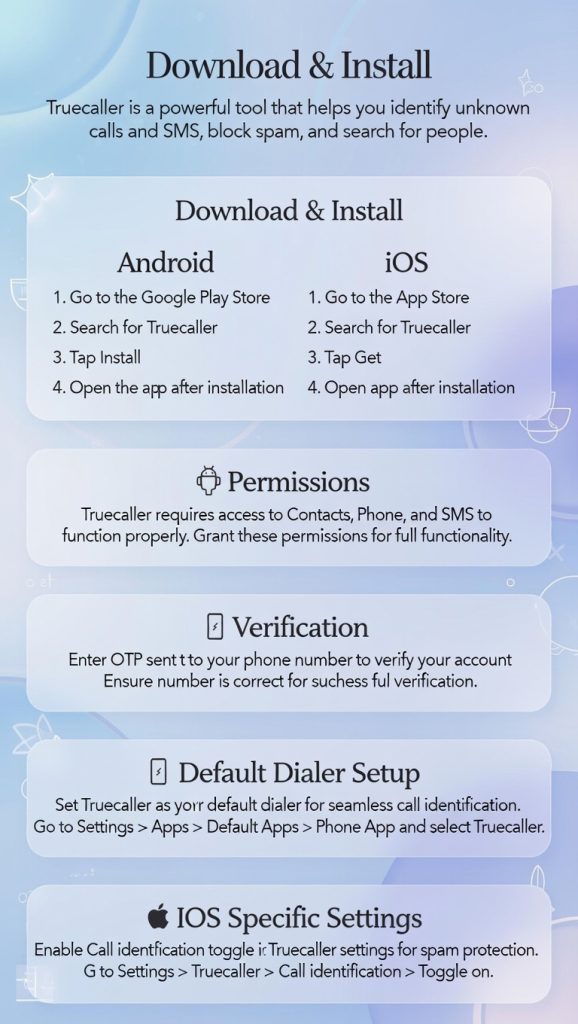
Head to the Google Play Store, search “Truecaller,” and tap Install (about 106 MB, requires Android 8.0+). Open the app, grant permissions for contacts, phone, SMS, and microphone. Sign in with your number via OTP. Enable as default dialer in Settings > Apps > Default apps > Phone > Truecaller. For spam blocking, go to Settings > Block > Enable auto-block for top spammers. It’s quick, but that initial permission prompt might make you pause—worth it for the protection.
(Suggestion: Add screenshots here for each step—permission prompts, OTP verification, and default dialer setup—to make instructions visual and easier to follow.)
Download and Install on iOS
On the App Store, search Truecaller and install (iOS 13+). Open Settings > Phone > Call Blocking & Identification, toggle Truecaller on. For Live Caller ID (Premium), enable in app settings. Sign in with your number. iOS setup is simpler but limited—no full call recording due to Apple rules. The ease brings a smile, knowing you’re covered without extra hassle.
(Suggestion: Add screenshots here showing the toggle in iOS Settings and the app’s Live Caller ID option.)
Initial Setup and Permissions
After install, allow all switches: contacts for ID matching, calls for blocking, SMS for spam filter. Set as default dialer/SMS app for full features. Privacy tip: Review in Settings > Privacy Center—disable what feels unnecessary. That moment of control over your data feels empowering, like locking your front door.
Core Features and How to Use Them
Truecaller’s tools make calls feel managed, not chaotic—that calm when spam bounces off. Get to know truecaller’s features to know how to use truecaller effectively.
Caller ID and Spam Blocking
Tap to enable in Settings > Block > Caller ID. Incoming calls show name/location instantly from the database. For blocking, toggle “Block top spammers” or “Unknown numbers.” It filters robocalls with 90%+ accuracy, using AI and community reports.
Real-world example and benefit: Imagine you’re expecting an important delivery call, but your phone rings with an unknown number during dinner. Truecaller identifies it as spam from a known telemarketer. You ignore it without stress, saving time and avoiding scams. The relief of ignored spam calls is huge—peace during dinner again.
Call Recording
On Android, go to Settings > Calls > Call Recording > Enable. Manually record during calls or auto for contacts. Recordings save in app with transcripts (Premium). iOS lacks native support due to laws.
Real-world example and benefit: Recording a business negotiation or important conversation provides a backup, like having a witness. It brings security and helps review details later, especially useful for freelancers or anyone dealing with verbal agreements.
Who Viewed My Profile
In Settings > Privacy Center > Who Viewed My Profile (Premium). Get notifications on views. Turn off visibility for privacy. The curiosity of “who checked me?” mixes with caution—track interest without exposure.
Incognito Mode
Settings > Privacy Center > View Profiles Privately (Premium). Browse anonymously, no notifications sent. Perfect for discreet checks, easing that awkward “seen” feeling.
Truecaller Assistant
Premium feature: Settings > Assistant > Enable. AI answers, screens calls, transcribes. Customize greetings. It handles annoyances like a virtual secretary, freeing your time with a sense of efficiency.
Real-world example and benefit: Let the Assistant screen sales calls while you’re in a meeting. It politely asks for details and transcribes them, so you decide later without interrupting your flow.
Messaging and SMS Features
In Messages tab, schedule SMS or filter spam. Unified inbox organizes personal/spam. Offline SMS works without data. The convenience of one app for calls/texts feels streamlined, reducing app-switching frustration.
Advanced Tips and Customization
To get the most, tweak like a pro—that satisfying optimization. Get the most advanced tips on how to use truecaller.
- Customize block list: Add numbers manually in Block section.
- Dark mode for eyes: Settings > Appearance.
- Backup data: Settings > Backup & Restore (Google Drive).
- Premium perks: Upgrade for ad-free, unlimited requests.
- iOS Live ID: Enable in app for real-time alerts.
These tweaks turn basic use into tailored control, bringing that “I got this” confidence.
Comparison with Competitors
Truecaller stands out with its massive crowdsourced database and community-driven updates. Popular alternatives include:
- Hiya: Strong spam detection but smaller database.
- YouMail: Excellent voicemail features and visual voicemail, but less focus on real-time caller ID.
- RoboKiller: Aggressive spam blocking with audio challenges for bots, but can be more intrusive.
Truecaller’s combination of AI, community reports, and broad platform support makes it a top choice for most users.
For Advanced Users
For power users who want even more control, Truecaller offers deeper customization:
- Experiment with custom block rules: Combine keywords, number patterns, and time-based blocking for ultra-precise spam filtering.
- Integrate with other apps: Use Truecaller alongside task managers or calendars to auto-silence calls during scheduled events.
- Explore API-like features (Premium): Some advanced users monitor call logs via exports for personal analytics.
By tweaking these options, you can create a highly optimized call management system tailored to your lifestyle.
Troubleshooting Common Issues
Apps glitch, but fixes restore flow—like clearing a fog.
- No caller ID: Check internet, update app, re-enable permissions. Try restarting your phone or clearing app cache.
- Won’t block spam: Toggle in Block settings, clear cache. Ensure “Block top spammers” is active and report missed spams to improve the database.
- Call recording fails: Set as default dialer, check laws. On Android, confirm microphone permission and storage access.
- iOS setup issues: Re-toggle Call Blocking & Identification in iOS Settings.
- Battery drain: Limit background activity in phone settings, use lite mode, or disable unnecessary features like Who Viewed My Profile.
Frequently Asked Questions (FAQs)
Conclusion
Using Truecaller turns phone chaos into calm control. From easy setup to powerful spam blocks and AI features, it eases daily worries while respecting privacy and local laws. Now that you’ve learned how to use Truecaller for caller ID, spam blocking, call recording, and more, it’s time to take action—download the app today and start enjoying safer calls.
Join the Truecaller community for the latest tips, script-free updates, and user-shared experiences. Have you used Truecaller to block a persistent spammer or avoid a scam? Drop a comment below and let us know your favorite features or any tips you’ve discovered! For the latest scripts-free updates and giveaways, check out the official Truecaller Discord server or community forums.
Safer calls await—start today!